The Related Products feature in the Fether app helps you recommend complementary items across your store, encouraging customers to add more products to their cart effortlessly. With multiple recommendation strategies available, Fether gives you both flexibility and control over how products are suggested.
This guide walks you through setting up Related Products step by step and explains how to choose the right strategy for your store.
Step 1: Open the Related Products Settings
Navigate to Cross-sell & Upsell Widget →Product Page--> Set up on Related products
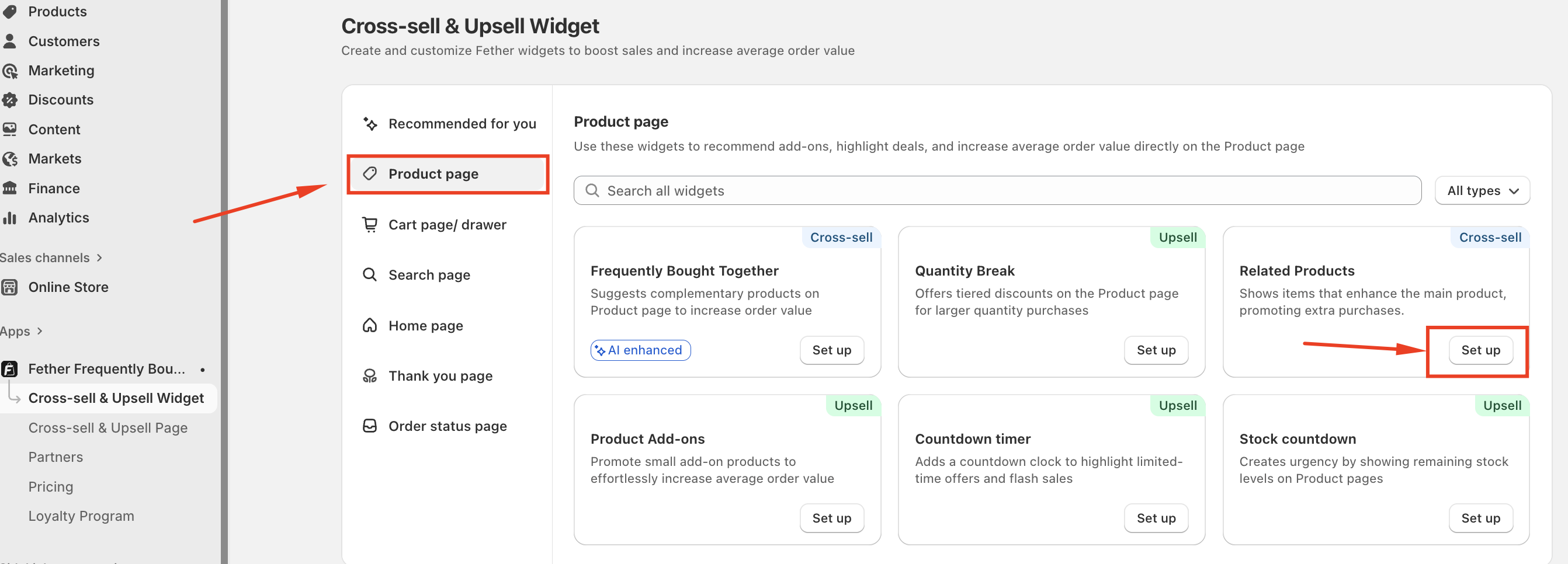
Step 2: Go to Widget Settings
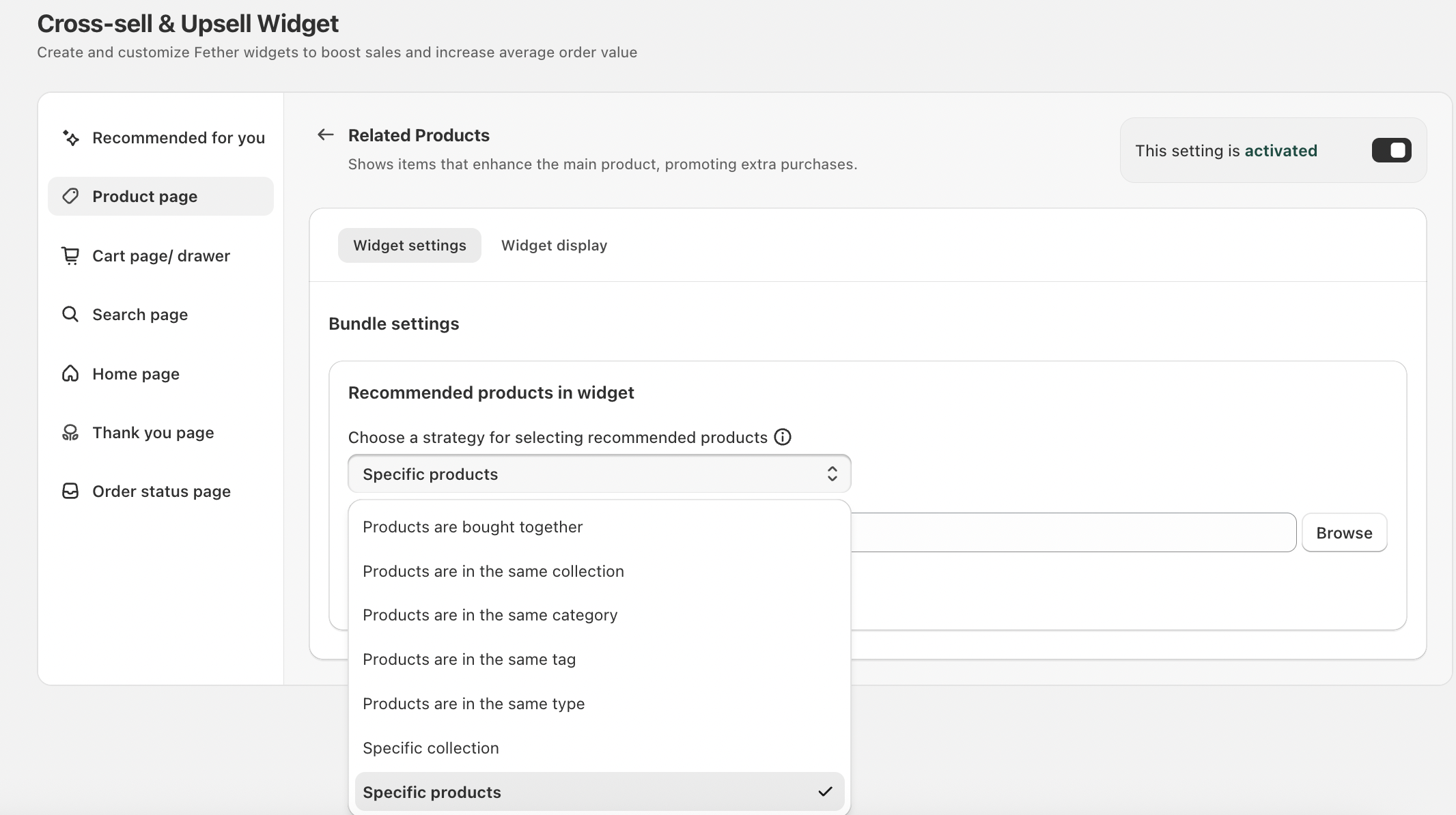
Under Widget settings, you’ll find the Bundle settings section. This is where you decide how Fether selects products to recommend.
Look for Recommended products in widget and click the strategy dropdown.
Step 3: Choose a Recommendation Strategy
Fether offers multiple strategies to match different merchandising needs. Here’s what each option does and when to use it.
1. Products Are Bought Together
This strategy recommends products that customers frequently purchase together.
2. Products Are in the Same Collection
Shows products that belong to the same Shopify collection as the main product.
3. Products Are in the Same Category
Recommends items from the same category, helping customers explore similar products.
4. Products Are in the Same Tag
Uses product tags to determine recommendations.
5. Products Are in the Same Type
Displays products with the same product type.
6. Specific Collection
Allows you to select one specific collection to use for recommendations.
7. Specific Products
Manually choose exactly which products appear in the widget.
Step 4: Filter Out Older Products (Optional)
To keep recommendations relevant, enable Hide products created more than and set a time limit (for example, 180 days).
This helps:
Remove outdated or seasonal products
Keep widgets focused on current inventory
Improve conversion rates
Step 5: Customize Widget Display
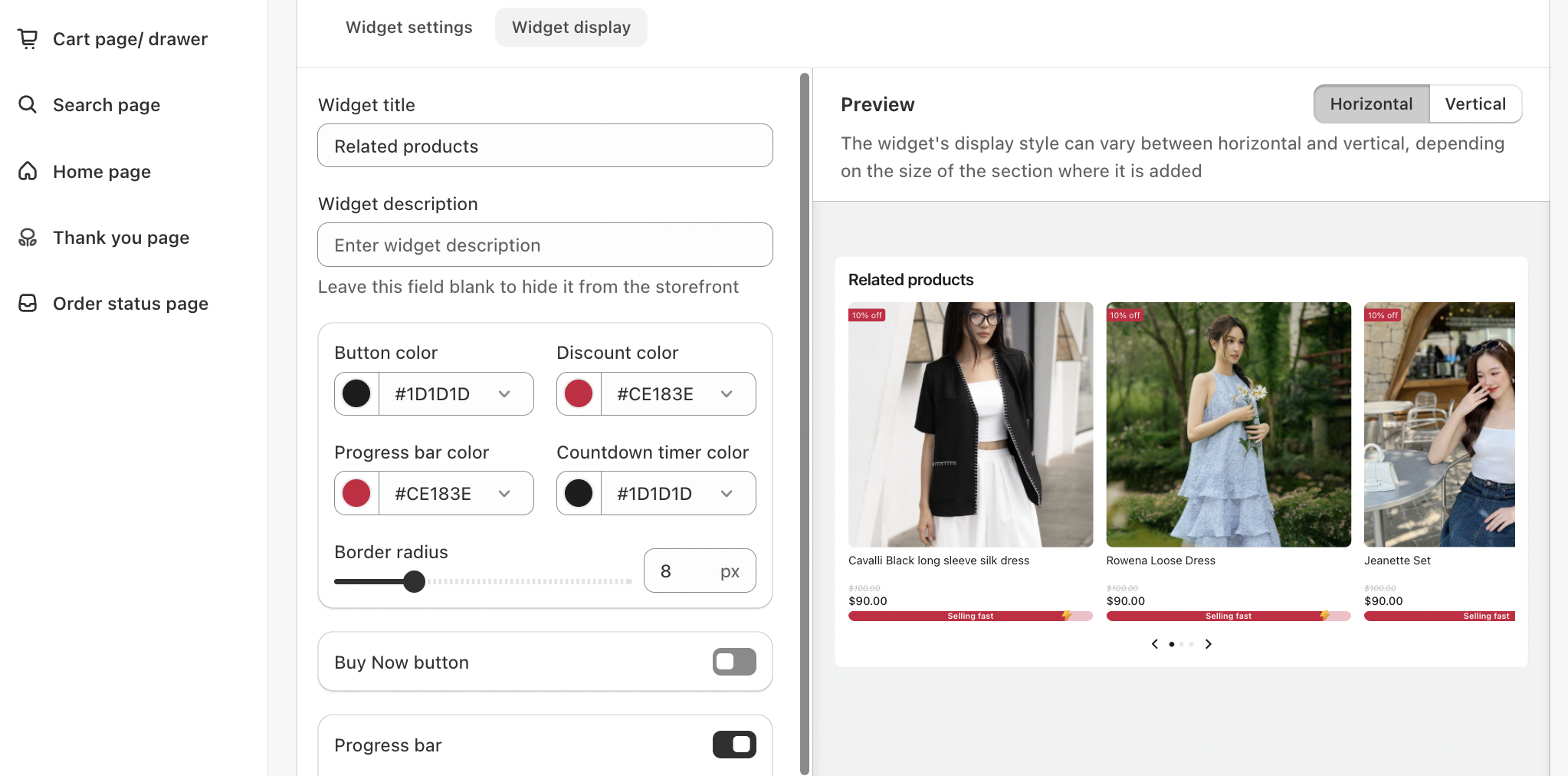
Switch to the Widget display tab to customize the visual appearance and behavior of the Related Products widget.
From here, you can configure:
Widget title and optional description
Button, discount, progress bar, and countdown timer colors
Border radius for product cards
Buy Now button visibility
Progress bar visibility
Horizontal and vertical layout preview
Step 6: Save and Test
Once your strategy and display settings are ready:
Click Save
Visit a product page on your store
Confirm that the Related Products widget appears correctly
Your recommendations are now live.
Conclusion
Fether’s flexible recommendation strategies make it easy to tailor product suggestions to your store’s unique needs. Whether you prefer automated logic or hands-on control, Related Products helps turn every product page into a growth opportunity.
If you require further assistance, please don't hesitate to contact us at support@fether.app.
Was this article helpful?
That’s Great!
Thank you for your feedback
Sorry! We couldn't be helpful
Thank you for your feedback
Feedback sent
We appreciate your effort and will try to fix the article