The Related Products widget on the Thank You page allows you to personalize post-purchase recommendations and encourage repeat buying. By adjusting its display settings, you can control how the widget looks, what it communicates, and how it drives customer engagement.
Accessing the Widget Display Settings
To customize the widget:
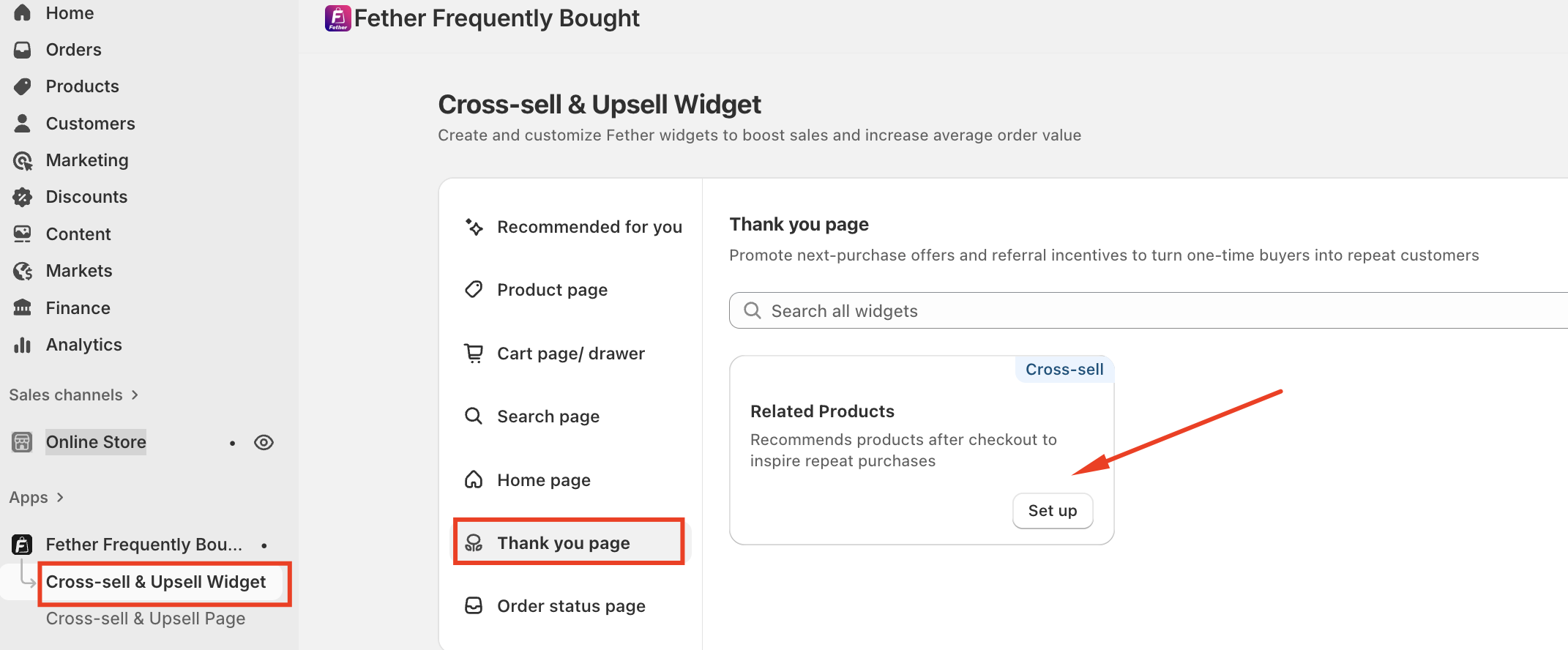
Open the Cross-sell & Upsell Widget-->Thank you page --> Set up on Related Products
Click the Widget display tab
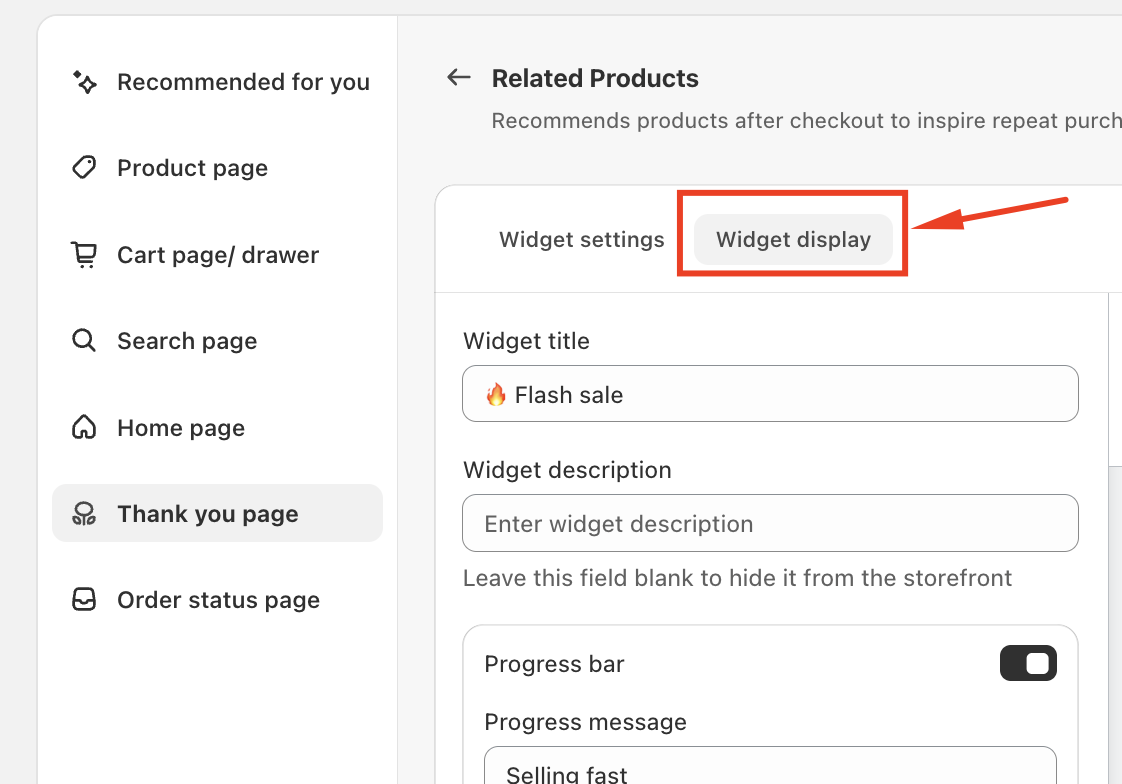
This section controls all visual and engagement-related settings for the widget.
Customization Options
Widget Title
Edit the title shown to customers, such as “Related products” or “You may also like.” Use a short, clear heading that matches your brand tone.
Widget Description
Add optional supporting text below the title. Leave this field empty to hide the description and keep the widget minimal.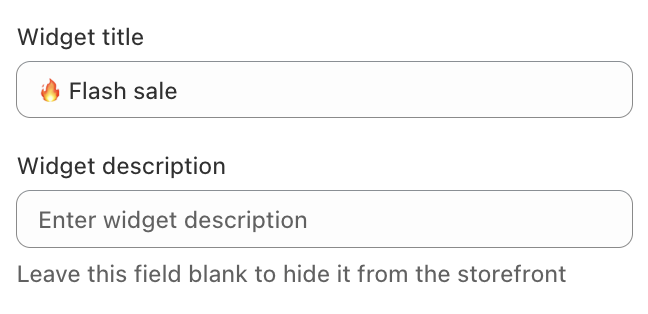
Engagement Settings
Progress Bar
Enable the progress bar to highlight product demand and create urgency.
Set a custom progress message (e.g., Selling fast)
Adjust the demand indicator percentage to control the visual level
Countdown Timer
Turn on the countdown timer to display a timer next to the widget title. This is useful for limited-time promotions or special offers.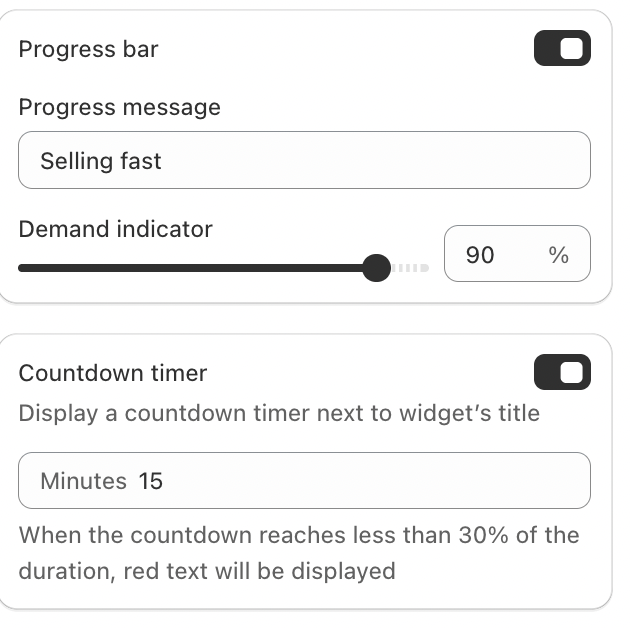
Summary
Customizing the Related Products widget on the Thank You page helps you create a tailored post-purchase experience. With the right titles, descriptions, and engagement features, you can turn a confirmation page into an effective channel for repeat purchases.
If you require further assistance, please don't hesitate to contact us at support@fether.app.
Was this article helpful?
That’s Great!
Thank you for your feedback
Sorry! We couldn't be helpful
Thank you for your feedback
Feedback sent
We appreciate your effort and will try to fix the article