Product Add-ons allow you to upsell complementary items directly on your product pages, helping increase average order value while improving the customer shopping experience.
What Are Product Add-ons?
Product Add-ons are optional items displayed on a product page that customers can easily add to their purchase. Common examples include:
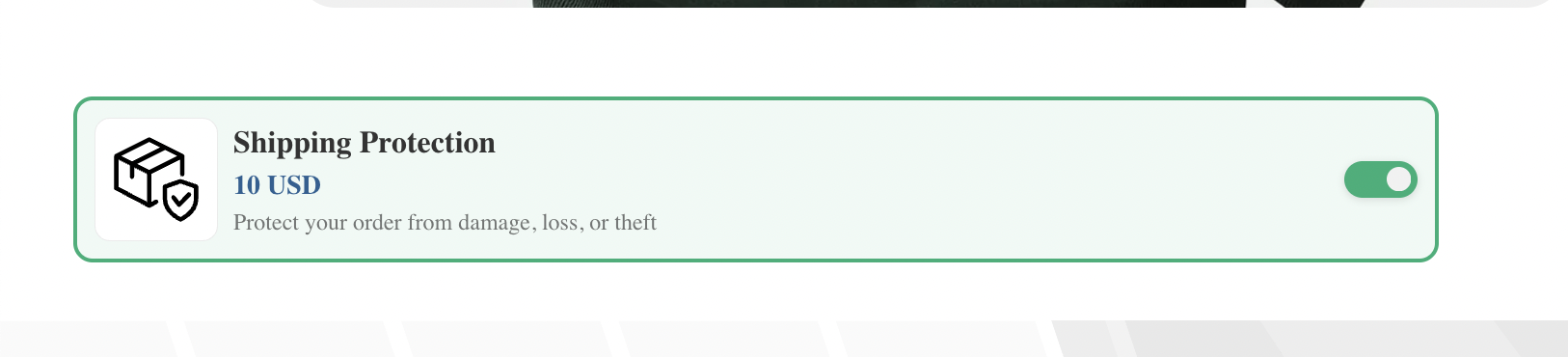
Shipping protection
Priority Processing
Extended Warranty
Expedited Shipping
Mystery Product
They appear at the right moment in the buyer journey, making it easier for customers to add value without leaving the page.
Step 1: Navigate to Product Add-ons
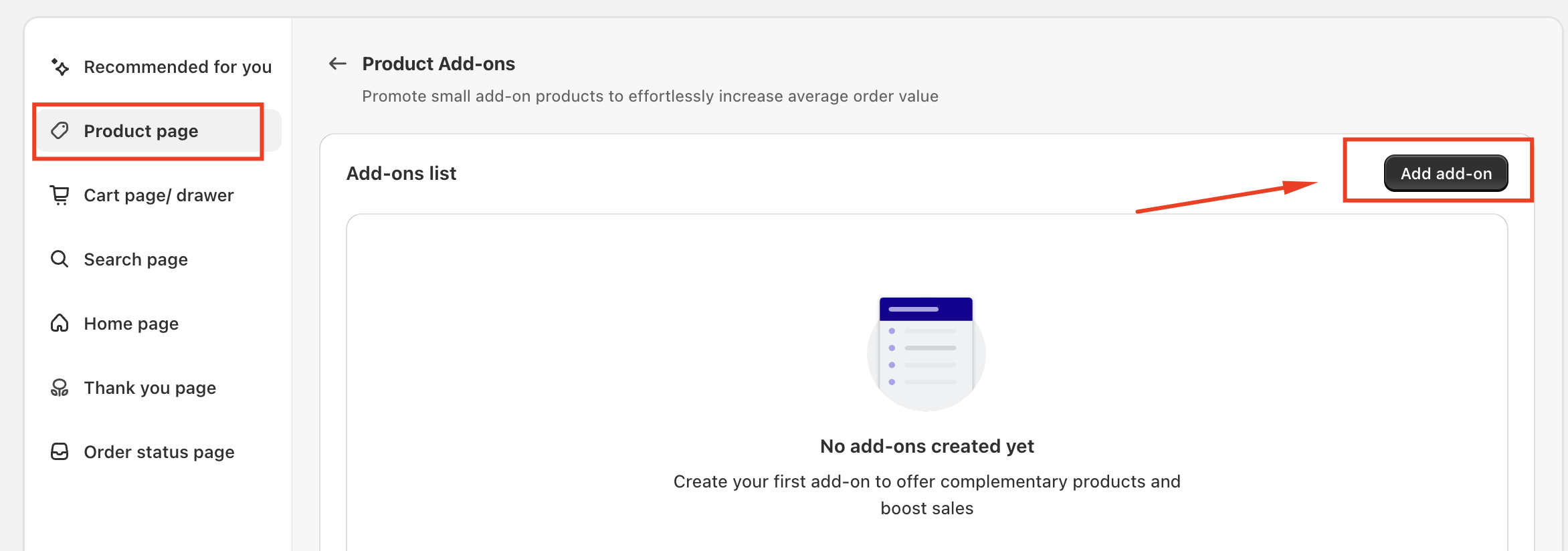
Go to Cross-sell & Upsell Widget.
Select Product page from the left-hand menu.
Click set up on product add-ons
Hit "Add add-on"
This will open the add-on configuration screen.
Step 2: Configure General Settings
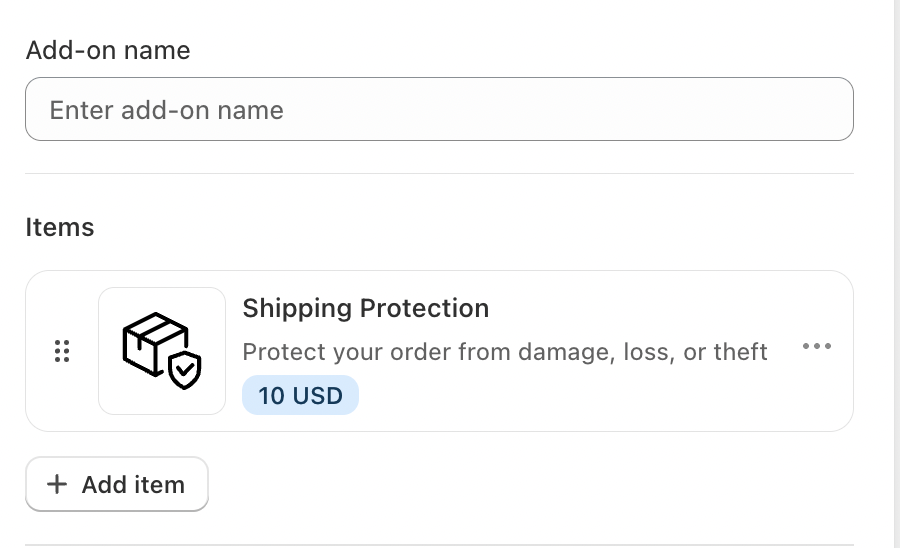
Add-on Name
Enter a clear and customer-friendly name for your add-on. This name may be visible to customers, so keep it short and descriptive (e.g., Shipping Protection).
Items
Add one or more products that will be offered as part of the add-on.
Click Add item
Select the product
Set the price (fixed or predefined)
You can reorder items if multiple options are added.
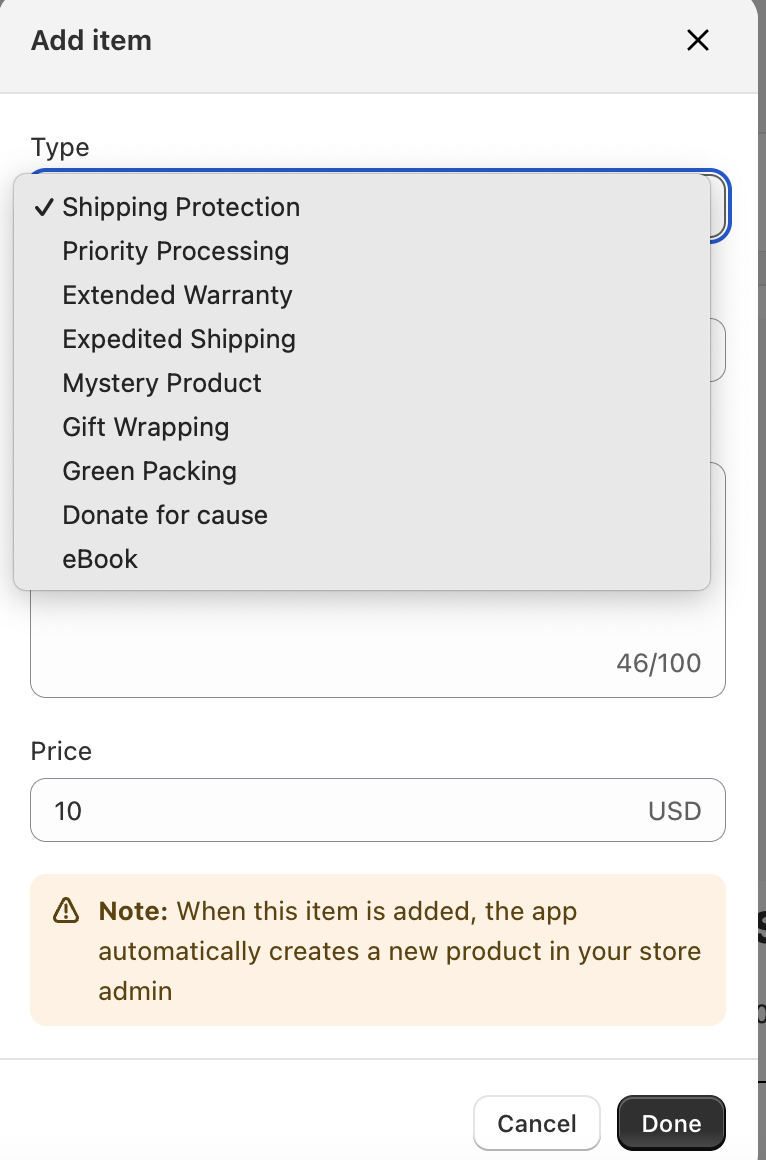
We currently offer 9 types items. Here's the list:
- Shipping Protection
- Priority Processing
- Extended Warranty
- Expedited Shipping
- Mystery Product
- Gift Wrapping
- Green Packing
- Donate for cause
- eBook
Step 3: Choose Display Settings
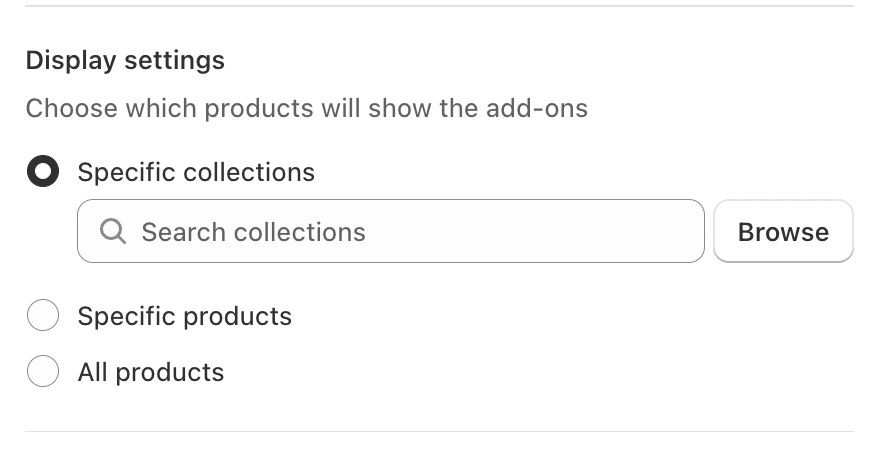
This section determines where the add-on will appear.
You can choose from:
Specific collections – Show the add-on only for products within selected collections
Specific products – Apply the add-on to selected products only
All products – Display the add-on across the entire store
Use this flexibility to ensure relevance and avoid overwhelming customers.
Step 4: Customize Appearance
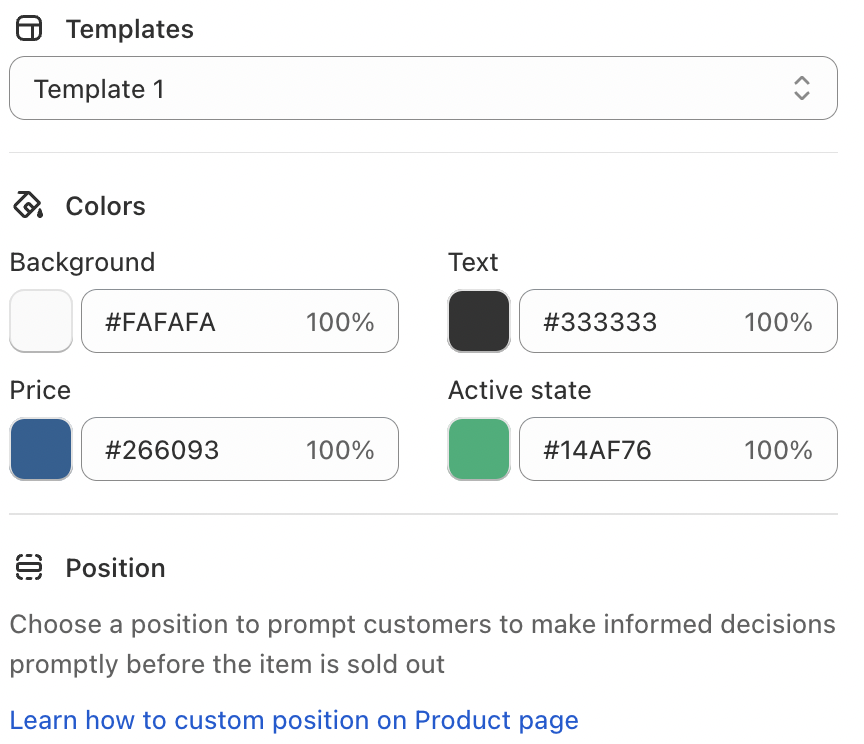
Switch to the Appearance tab to match the add-on widget with your store branding.
Templates
Choose from available layout templates to control how the add-on is displayed.
Colors
Customize:
Background color
Text color
Price color
Active state color
These settings help maintain visual consistency with your theme.
Position
Choose where the add-on appears on the product page so it’s noticeable but not disruptive.
Step 5: Save and Test
Once configured:
Save your add-on
Visit your storefront
Open a product page where the add-on should appear
Make sure:
The add-on displays correctly
Pricing is accurate
The add-on can be added to cart successfully
If you require further assistance, please don't hesitate to contact us at support@fether.app.
Was this article helpful?
That’s Great!
Thank you for your feedback
Sorry! We couldn't be helpful
Thank you for your feedback
Feedback sent
We appreciate your effort and will try to fix the article