The Flash Sale widget is designed to highlight time-limited deals on the Home page, helping create urgency and drive quick purchasing decisions. By customizing its display settings, merchants can control how the widget appears, how it’s introduced to visitors, and how strongly it communicates urgency.
Accessing the Flash Sale Widget
To customize the Flash Sale widget:
Open Cross-sell & Upsell Widget --> Home page --> Set up on Flash Sale
Go to the Widget display tab
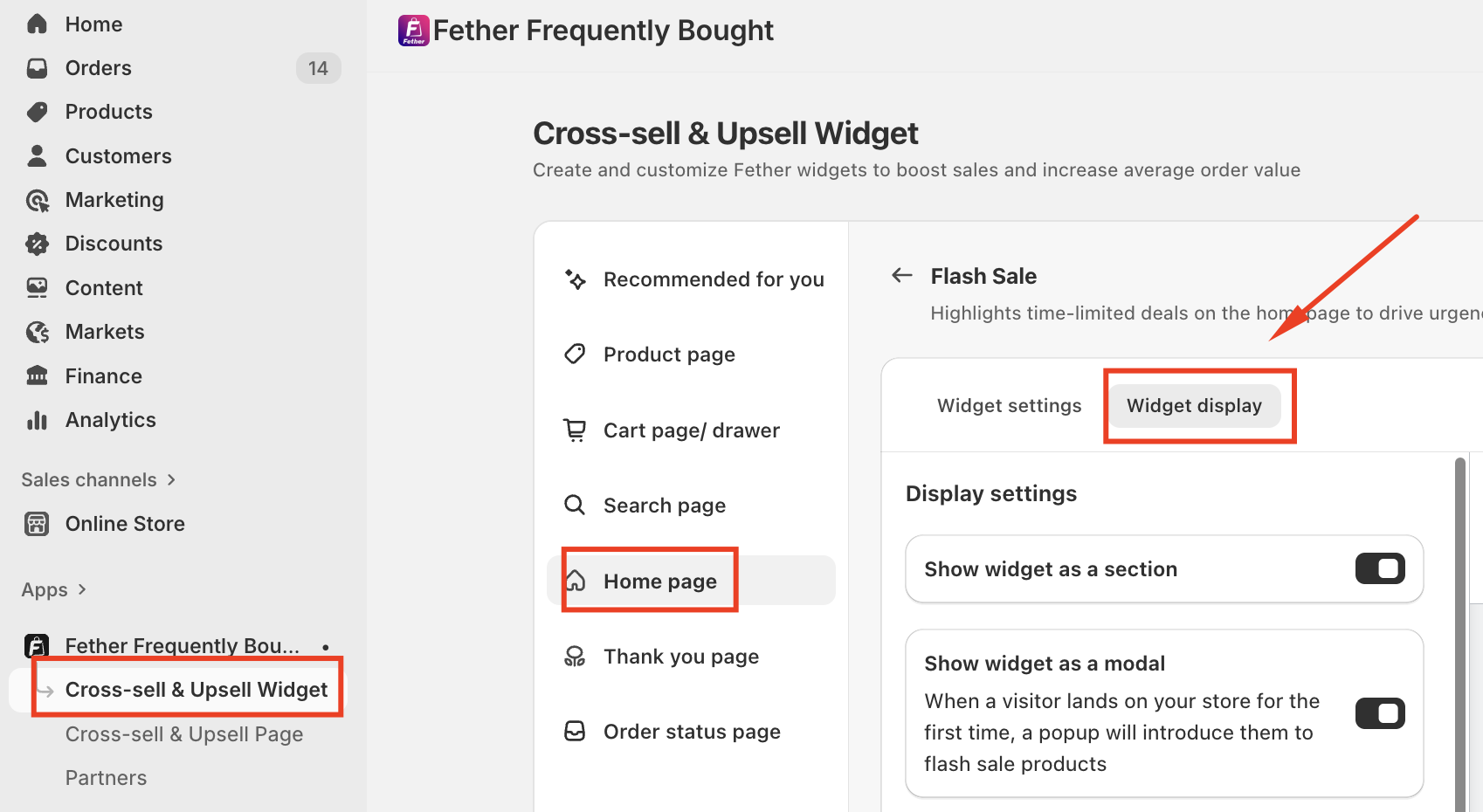
This section contains all visual and layout-related settings for the widget.
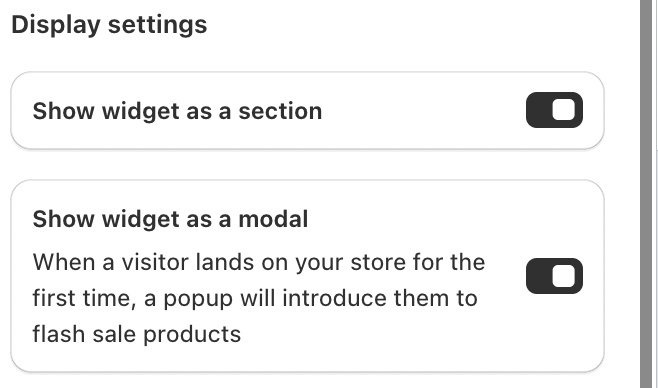
Display Settings
Show Widget as a Section
When enabled, the Flash Sale appears as a dedicated section on the Home page. This option is ideal for continuously promoting discounted products to all visitors.
Show Widget as a Modal
This option displays the Flash Sale as a popup when a visitor lands on your store for the first time. It is useful for immediately drawing attention to limited-time offers without requiring customers to scroll.
You can enable either option depending on how prominently you want the Flash Sale to appear.
Widget Content Customization
Widget Title
Set the headline displayed to customers, such as “Flash sale”. A short, eye-catching title helps communicate urgency instantly.
Widget Description
Optional supporting text shown below the title. Leave this field blank to hide the description and maintain a clean layout.
Urgency & Conversion Elements
Buy Now Button
When enabled, the Buy Now button appears prominently within the Flash Sale widget, allowing customers to act immediately on the deal.
You can customize the button text (for example, “BUY NOW”) to match your brand voice or promotional strategy. This direct call-to-action helps reduce friction and encourages faster conversions.
Progress Bar
The Progress bar visually communicates demand and sales momentum, reinforcing urgency through social proof.
Progress message: Customize the text displayed above the bar, such as “Selling fast”, to highlight high interest.
Demand indicator: Adjust the percentage to represent how much of the deal has already been claimed. Higher values increase the perception of scarcity.
This feature is especially effective for limited-stock or high-demand products.
Countdown Timer
The Countdown timer emphasizes how much time remains before the Flash Sale ends.
Set the duration in minutes (for example, 15 minutes).
The timer is displayed next to the widget’s title for maximum visibility.
When the remaining time drops below 30% of the total duration, the timer automatically turns red to intensify urgency.
Countdown timers are a proven way to prompt quicker purchasing decisions by highlighting time-sensitive offers.
Color and Visual Styling
The Flash Sale widget allows color customization to match your brand while emphasizing promotions:
Button color: Controls the primary call-to-action buttons
Discount color: Highlights discount badges and price reductions
Progress bar color: Indicates demand or sales progress
Countdown timer color: Emphasizes time-sensitive offers
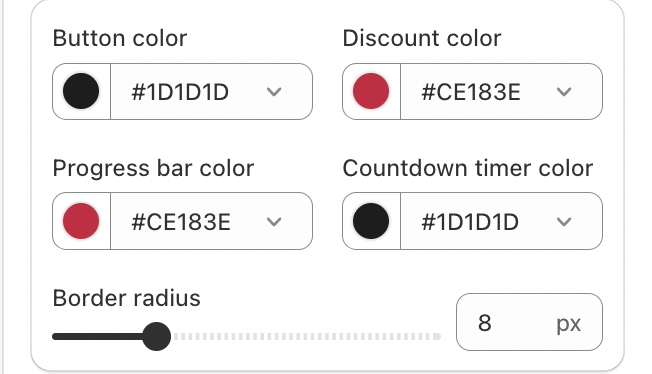
Using contrasting colors helps draw attention to deals without overwhelming the page.
Summary
Customizing the Flash Sale widget on the Home page allows you to control visibility, urgency, and visual impact. With flexible display options, conversion-focused elements, and branded styling, the widget becomes a powerful tool for driving attention to promotions and increasing conversion rates.
If you require further assistance, please don't hesitate to contact us at support@fether.app.
Was this article helpful?
That’s Great!
Thank you for your feedback
Sorry! We couldn't be helpful
Thank you for your feedback
Feedback sent
We appreciate your effort and will try to fix the article