Sometimes, after applying an upsell or custom product page template, you may find that it doesn’t match your store’s design or meet your expectations. If that happens, Shopify makes it easy to revert the product page back to the original default template.
Resetting the product page does not delete your product or its information. It simply changes the layout and design back to the standard template provided by your theme.
When should you reset the product page?
You may want to reset your product page if:
The upsell template does not look good on your store
The layout feels confusing for customers
The design conflicts with your theme
You want to return to Shopify’s default product experience
Steps to reset the product page template
To restore a product page to the default template, follow these simple steps:
Log in to your Shopify Admin
Navigate to Products from the left-hand menu
Find and open the product you want to update
Scroll down to the Theme template section on the product page
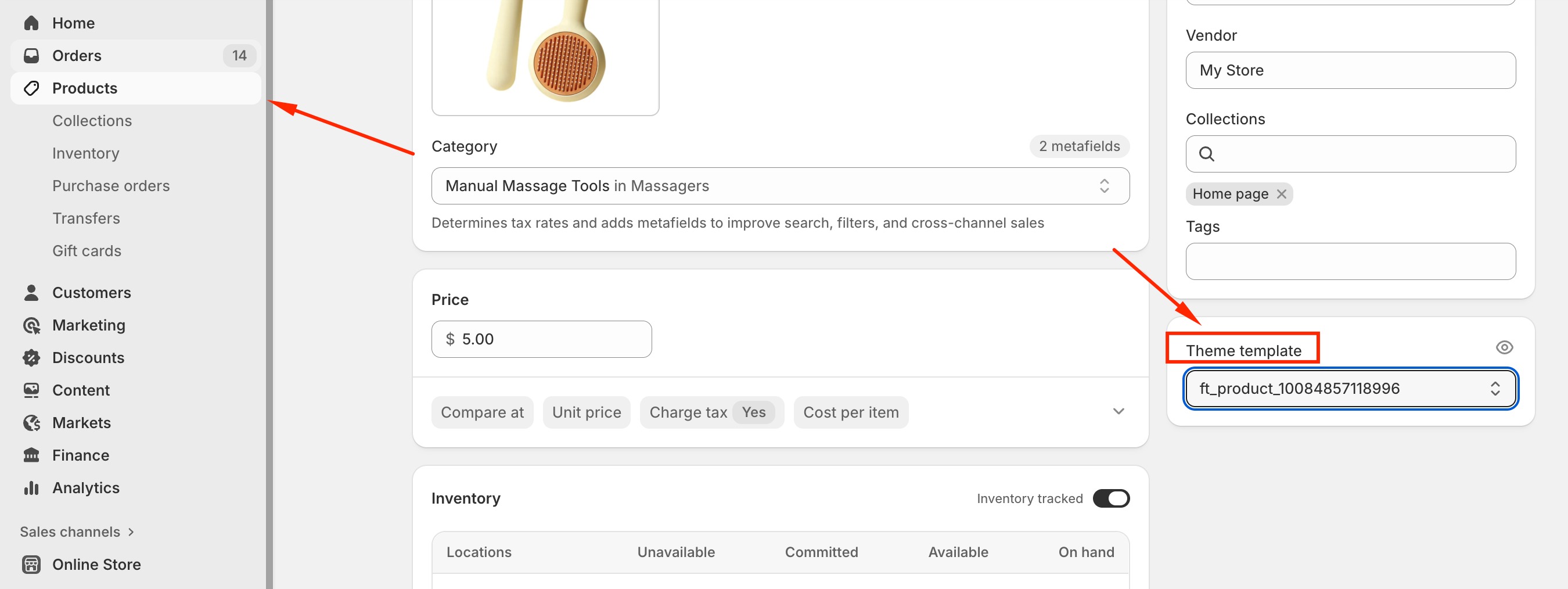
Select Default product from the template dropdown
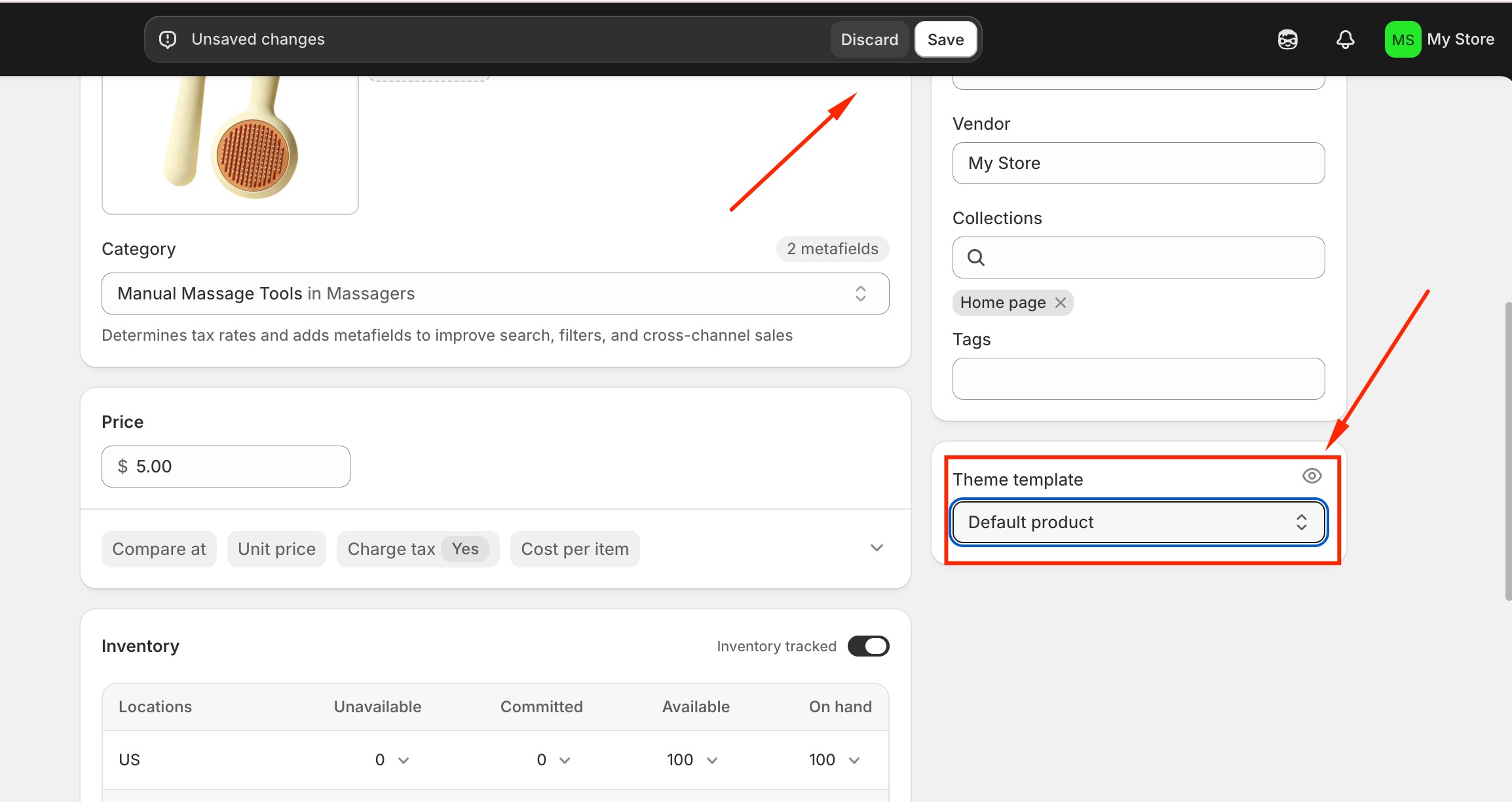
Click Save
Once saved, the product page will immediately switch back to the default template used by your active theme.
Final notes
Resetting the product page is completely safe and reversible. You can always reapply a custom or upsell template later if you decide to try it again. This flexibility allows you to experiment with different layouts while maintaining full control over your store’s appearance.
If you require further assistance, please don't hesitate to contact us at support@fether.app.
Was this article helpful?
That’s Great!
Thank you for your feedback
Sorry! We couldn't be helpful
Thank you for your feedback
Feedback sent
We appreciate your effort and will try to fix the article
