Customizing the appearance of your Stock Countdown helps ensure it matches your brand while effectively capturing customer attention. This feature encourages customers to act quickly before an item runs out.
Accessing the Appearance Settings
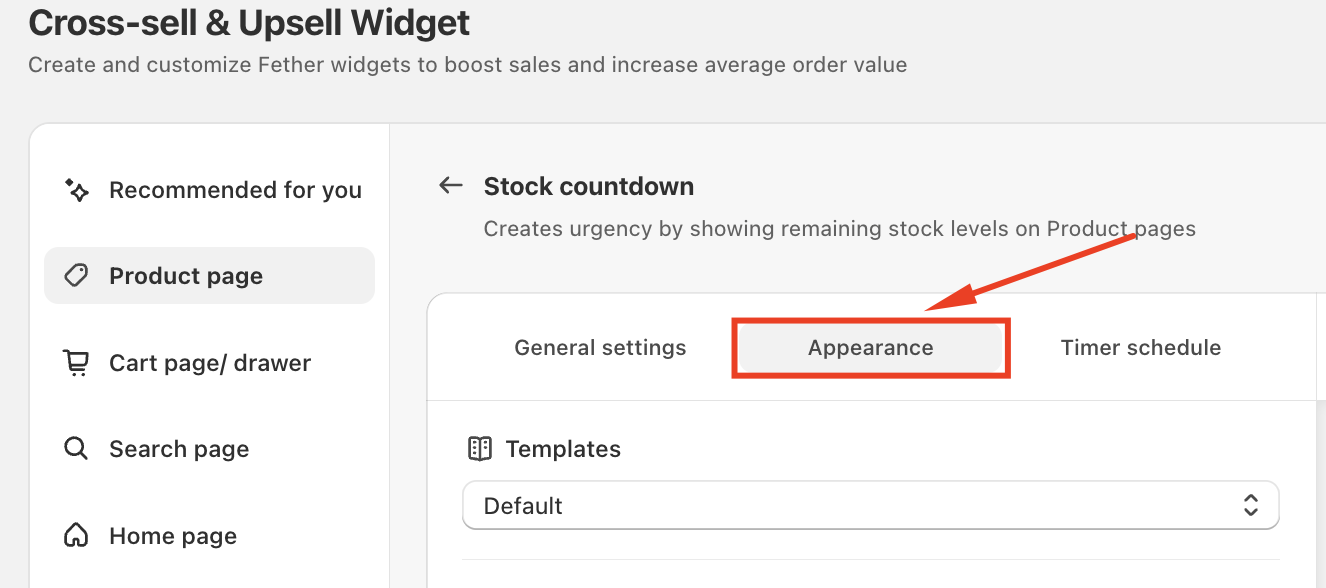
To begin customizing your Stock countdown:
Go to Cross-sell & Upsell Widget
Select Product page
Click Set up on Stock countdown
Navigate to the Appearance tab
Stock Countdown Template
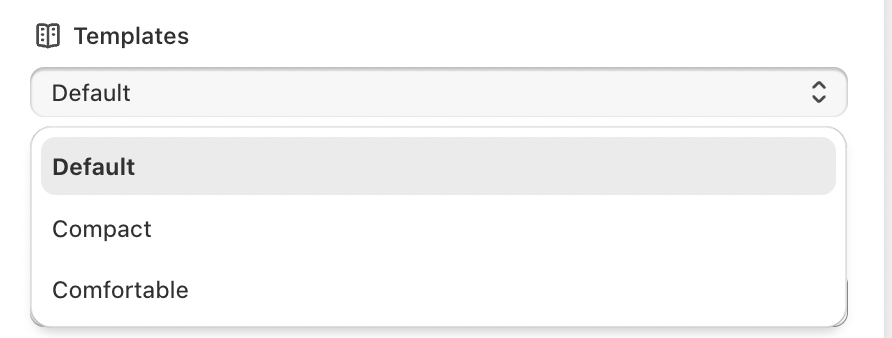
To help you quickly style your Stock countdown, we offer several ready-made templates. These templates are designed to work with different store themes and promotion types.
You can select a template from the Templates dropdown in the Appearance tab.
Default: A more standard, minimalistic option that integrates seamlessly with most designs.
Comfortable: A spacious, easy-to-read design with ample white space, ideal for a clear and accessible countdown display.
Compact: A condensed version for stores with limited space or those preferring a subtle display.
Color Customization
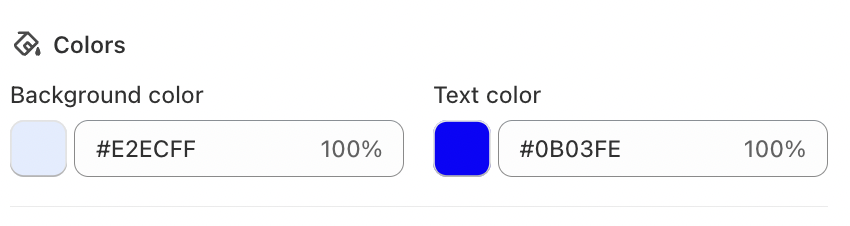
Under the Appearance tab, customize the countdown to match your brand:
Background Color
Controls the background behind the timer and text. Choose a color that contrasts with your product page while remaining visually comfortable.
Text Color
Defines the color of headings and announcement text. High contrast improves readability and accessibility.
Positioning the Stock countdown
The Position setting determines where the stock countdown appears on your product page.
Strategic placement helps ensure customers notice the timer at the right moment, before they hesitate or leave the page.
How to customize Stock countdown position on Product page
Conclusion
Adding a stock countdown to your product pages is an effective way to create urgency and encourage customers to make quicker purchasing decisions. By customizing the appearance and positioning, you can align the countdown with your website's design and brand, driving more conversions and boosting sales.
If you require further assistance, please don't hesitate to contact us at support@fether.app.
Was this article helpful?
That’s Great!
Thank you for your feedback
Sorry! We couldn't be helpful
Thank you for your feedback
Feedback sent
We appreciate your effort and will try to fix the article