If you see the message “App block status: Disabled”, it means the app’s widget is not yet added to your theme. The widget will not appear or function properly on your storefront until the app block is enabled
Why This Happens
Shopify requires app widgets to be added as app blocks within the theme editor. If the app block hasn’t been added or is disabled, the widget cannot display on your store—even if it’s fully set up in the app dashboard.
How to Enable the App Block
Follow these steps to enable the app block and display the widget correctly:
Step 1: Add the App Block
Click Add app block now in the app dashboard
You’ll be redirected to the Shopify Theme Editor

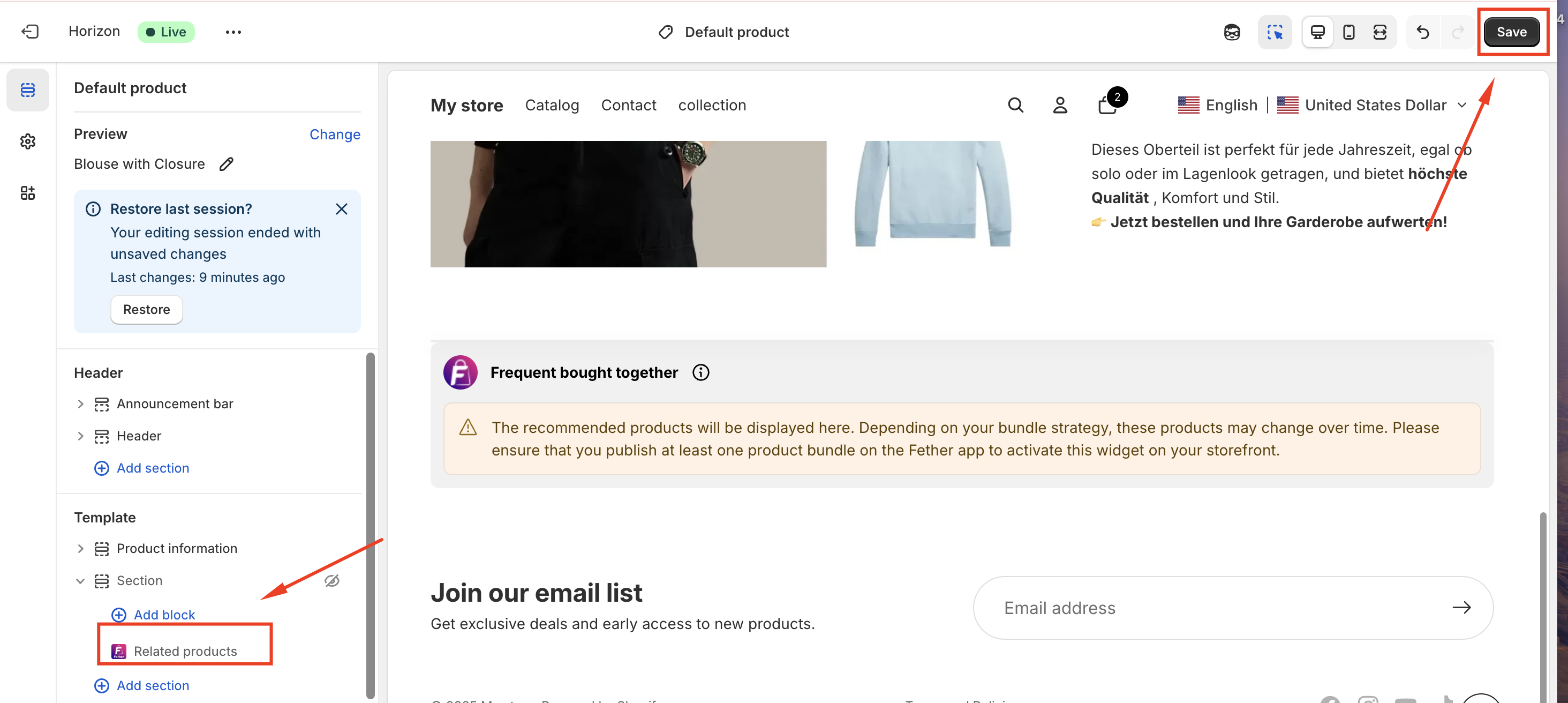
Step 2: Add the Block to the Correct Page
Navigate to the page where the widget should appear
Click Add block
Save your changes
Step 3: Verify the Status
After adding the app block:
Return to the app dashboard
Click Verify now
The app block status should update to Enabled
Once verified, the widget will be visible and fully functional on your storefront.
If you require further assistance, please don't hesitate to contact us at support@fether.app.
Was this article helpful?
That’s Great!
Thank you for your feedback
Sorry! We couldn't be helpful
Thank you for your feedback
Feedback sent
We appreciate your effort and will try to fix the article